
Edit Pattern
Overview
Edit Pattern modifies existing Pattern and Multi Pattern components in your Inventor assembly. It allows you to update the number of instances, spacing, direction, and other pattern parameters without recreating the pattern from scratch.
Edit Pattern automatically detects whether the selected component represents a Pattern or a Multi Pattern and opens the corresponding dialog.
How It Works
- Activate Edit Pattern.
- Select one pattern component occurrence.
- The command detects the pattern type:
- If it is a Multi Pattern, the Multi Pattern dialog opens.
- If it is a standard Pattern, the Pattern dialog opens.
- Modify parameters (spaces, distances, direction, pattern string, options).
- Click OK to apply changes and update the pattern in the assembly.
Usage Instructions
- Open the assembly containing the pattern you want to edit.
- Click Edit Pattern in the Construct panel.
- Select the pattern component occurrence to edit.
- Adjust the pattern’s inputs in the dialog.
- Click OK to apply changes and update the pattern.
Dialog Box Input
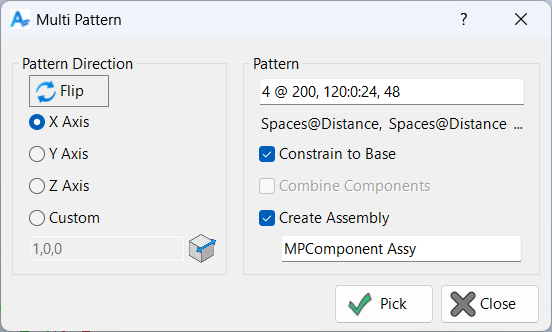
Pattern Type Detection
Edit Pattern automatically detects whether the selected component is a Pattern or Multi Pattern and opens the corresponding dialog.
Pattern Dialog (Standard Pattern)
- Spaces: Number of pattern instances (integer or Inventor expression).
- Distance: Spacing between instances (single value or three-part expression).
- Direction: Axis or custom vector for pattern placement.
- Flip: Reverse pattern direction.
- Constrain to Base: Constrain all instances to the first component.
- Combine Components: Option to group components before patterning.
- Create Assembly: Place pattern in a new sub-assembly.
Multi Pattern Dialog
- Pattern String: Comma-delimited definition of spaces and distances (e.g., 5 @ 24, 2 @ 12).
- Direction: Axis or custom vector for pattern placement.
- Offset: Specify x, y, z offsets (single or three-part expressions).
- Combine Components: Option to group components before patterning.
- Create Assembly: Place pattern in a new sub-assembly.
- Constrain to Base: Constrain all instances to the first component.
- BOM Structure: Set BOM structure for new assembly.
Confirmation
Review your changes and confirm to apply the updated pattern.
Troubleshooting
- Dialog does not open: Confirm the selected occurrence is a supported Pattern/Multi Pattern component.
- Pattern does not update: Check for constraints, suppressed occurrences, or dependencies that prevent changes.
- Unexpected spacing/direction: If using a three-part distance/offset, Pattern Direction is ignored.
Examples
Increase pattern count: Change a bolt pattern from 4 to 8 instances.
Adjust spacing: Modify the distance between duct hangers in a linear pattern.
Edit multi pattern: Update a pattern string to add more components or change spacing.
Change direction: Switch the axis or custom direction to align with a new design requirement.
